HYCU Microsoft Entra ID Backup: Protecting Identity Management

This post is a how-it-works guide for HYCU R-Cloud to backup and restore your Microsoft Entra ID configurations and data efficiently.
What is HYCU R-Cloud?
HYCU R-Cloud is a cloud-based data protection platform that automates backups and simplifies data recovery across on-premises infrastructure, cloud services, and SaaS applications. One of its key features is the flexibility to manage backup and restore operations from your preferred region, ensuring compliance with your organization's data residency requirements.
What is HYCU for Microsoft Entra ID?
HYCU for Microsoft Entra ID (formerly Azure Active Directory) provides automated, policy-driven backups and rapid, granular item-level recovery for Microsoft Entra ID configurations and data, offering enterprise-class protection for all of your IAM needs.
Setting Up Your Backup Storage
A core advantage of HYCU is the ability to use your own storage targets for immutable backups. You can configure various options, including:
- Amazon S3
- Azure Blob Storage
- Google Cloud Storage
- Any S3-compatible bucket (e.g., Wasabi)
Simply select your preferred storage vendor and enter the required details to add your backup target.
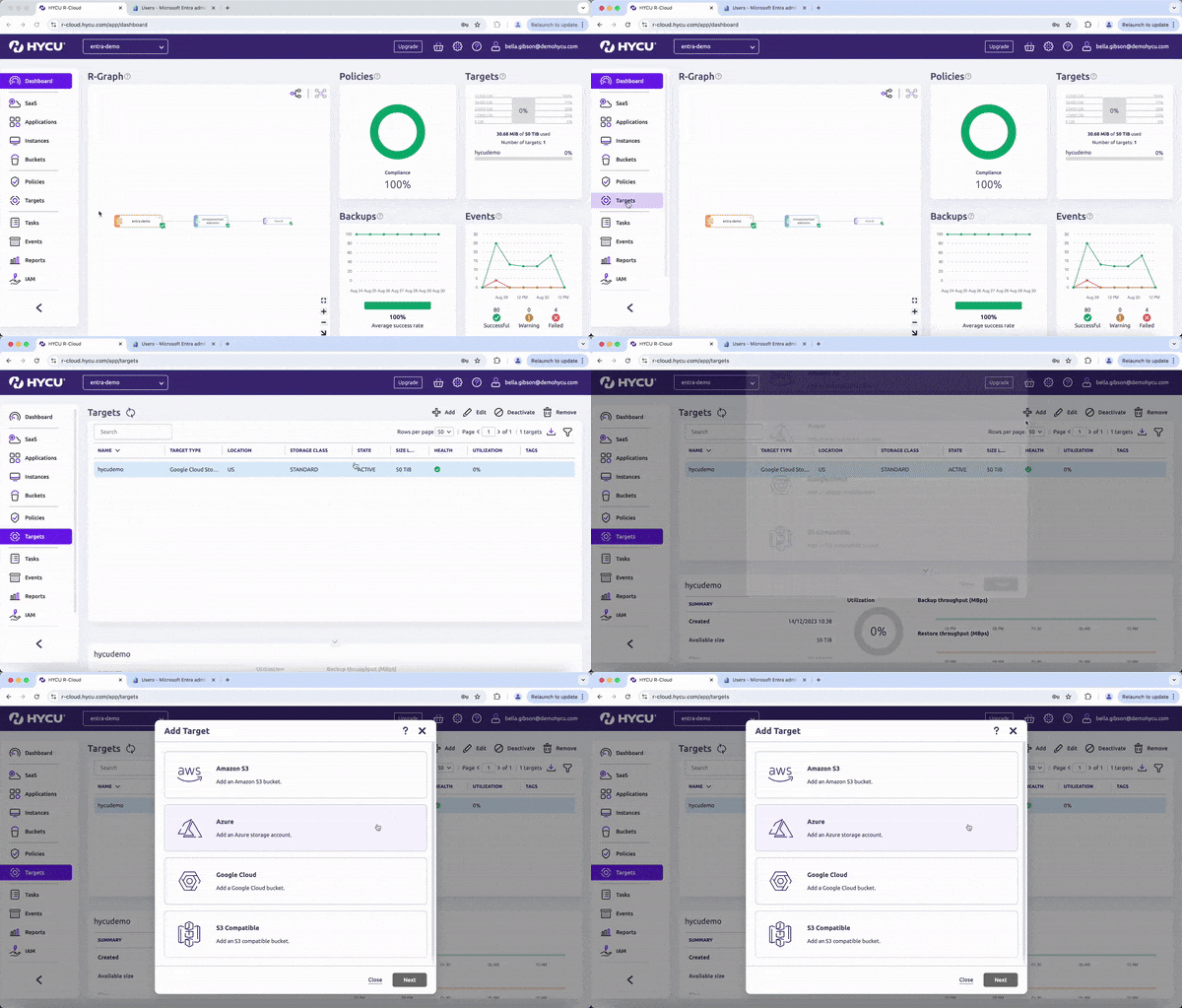
HYCU for Microsoft Entra ID Demo Targets
Creating Backup Policies
HYCU offers out-of-the-box policies for immediate use, or you can create custom policies tailored to your needs.
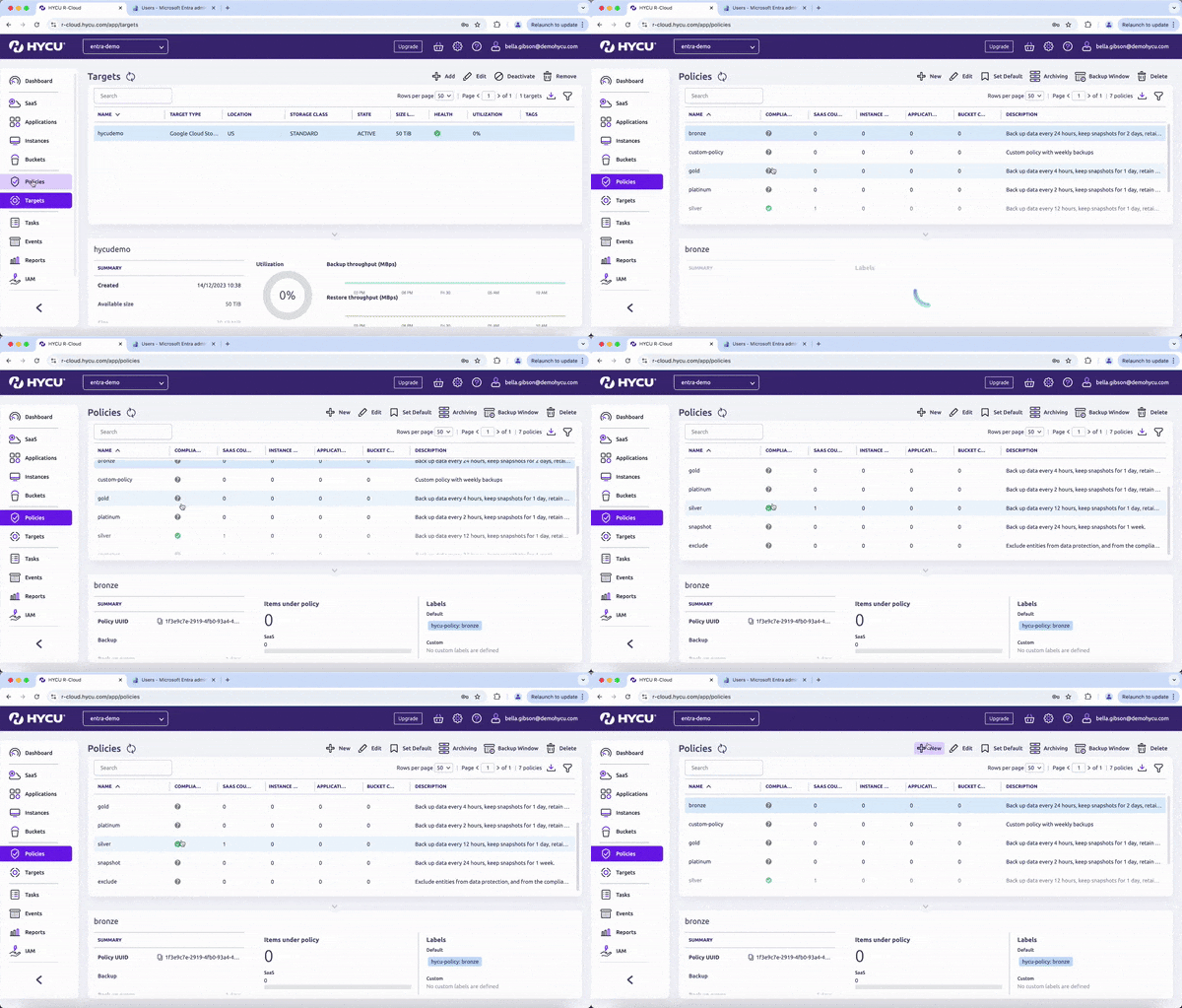
HYCU for Microsoft Entra ID Demo Policies
When creating a new policy, you can:
- Define backup frequency (down to hourly precision)
- Configure retention periods (e.g., storing backups for up to four years)
- Set up copies and archives of backups in separate locations
- Attach backup windows to control when backups run
Adding Microsoft Entra ID as a Source
Integrating Microsoft Entra ID with HYCU R-Cloud is straightforward:
- Select Entra ID from the list of modules
- Enter your tenant ID, client ID, and secret key
- View the added source under your SaaS applications
- Assign your chosen backup policy
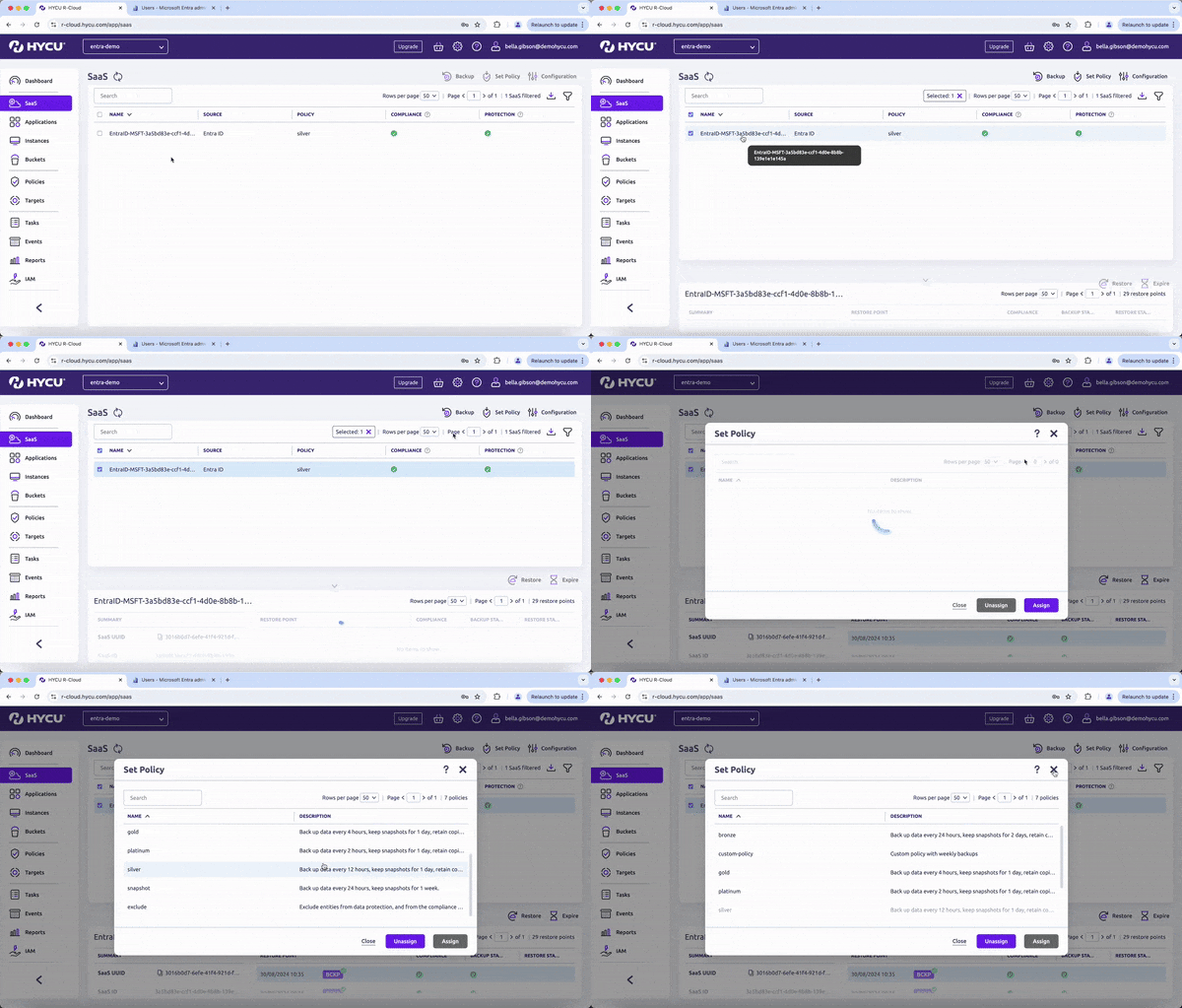
HYCU for Microsoft Entra ID Demo Set Policy
Restoring Entra ID Data
HYCU R-Cloud offers flexible restoration options:
- Choose a specific restore point
- Restore the entire tenant or browse through available objects
- Perform granular restores of single items (e.g., a deleted user)
Restore Process Example
Let's walk through restoring a deleted user:
- Select the desired restore point
- Browse and select the user to restore
- Choose the backup source (primary, secondary, or archive)
- Initiate the restore process
- Verify the restored user and their attributes in the Entra ID interface
By following these steps, you can efficiently protect and recover your Microsoft Entra ID data using HYCU R-Cloud, ensuring the security and availability of this critical identity management information.



Get the newest insights and updates
By submitting, I agree to the HYCU Subscription Agreement , Terms of Usage , and Privacy Policy .